Start here
This is the first year of a brand-new math curriculum in Clear Creek ISD (CCISD) elementary schools, called Bluebonnet Learning. Bluebonnet Learning is written by the Texas Education Agency (TEA), and is the Texas Standards (TEKS) aligned version of Eureka Math (published by Great Minds). Eureka Math/Bluebonnet is a math curriculum that focuses on conceptual (why) understanding versus more traditional memorization (how) in building math concepts through a school year and over many school years. Because it is so different than how nearly all parents (and older siblings) learned math, it can be more challenging to help support your students at home. This parent-created guide was written to help parents and students adjust to this curriculum change and provide some tips and best practices to help smooth the transition.
The switch to Bluebonnet has led to a lot of changes in the classroom experience, including daily lessons, testing, and homework. In many cases, it's also led to a relative change to the grades that your kids are receiving. These changes reflect new methods, new question formats, and new grading, not necessarily a drop in your child's ability.
This change also occurs at the same time CCISD has rolled out a new Grading/Progression Standards methodology. It might be confusing or difficult to understand how certain graded assignments lead to a specific progression grading on a report card. Our teachers are still learning how to connect these two pieces.
As you look at the graded assignments online or in progress reports and report cards, talk with your child. Ask what's going well in math and what feels confusing. Praise effort. Your child is learning a new way of doing math, and so is their teacher. Providing support and encouragement is the best way to help your child through this bumpy transition!
Start with these four things
- Get the books and answer keys. They're free on TEA's site for every grade, in English and Spanish (links below). Answers to Homework are near the end of each Teacher Edition.
- See your child's actual tests. ClassLink → Student Testing Access → My Test Scores. Review each one, because a low score may be the format or scoring method, not the math.
- Add some Zearn. It’s a free-for-parents digital platform that works alongside Bluebonnet curriculum. Follow along for additional questions, lessons, and practice assessments.
- Ask if you have questions! It’s early in Year 1 of the rollout. Your child’s teacher might be approaching things a bit differently – when in doubt, ask!
The Main Online Access Points for CCISD
You can utilize online resources to keep track of your child's progress in a number of ways through CCISD. Each campus and classroom might use some of these resources differently, and some resources are used uniformly across the district.
| Resource | Location | Login | How Utilized |
|---|---|---|---|
| Skyward | Skyward login | Every parent can create their own Skyward login. | Skyward is used for many district functions such as enrollment. This is also where you can see a student's Gradebook (which lists all graded work per class per quarter), official mid-quarter Progress Report, and official end-of-quarter Report Card. |
| Classlink | ClassLink login | Your student must utilize their own login for you to access this website. You can access from any computer. | Classlink is the "jump point" for all third party software utilized by your student. This is where their online textbooks are located. Several jump points for math (see below) will start from here. |
| Canvas | Canvas login Canvas parent access guide (PDF) |
If you have a Skyward login, you automatically have Canvas access. If you do not have Skyward access, you can still have a Canvas account that allows you to observe your child(ren)'s classes. Utilize the second link in the previous box. | This varies greatly between teachers, grades, and campuses. Some teachers utilize Canvas greatly to post course content, additional resources, assignment information, and other helpful info. Some teachers (especially in the younger grades) utilize the tool in a very limited fashion. |
Find your child's books and answer keys
Bluebonnet Learning is an "Open Educational Resource" which means that the curriculum is available for the public to view, free of charge. TEA posts the full course for every grade, in English and Spanish. No login is needed.
| Grade | English | Español |
|---|---|---|
| Kindergarten | Course 9533 | Curso 11109 |
| Grade 1 | Course 9539 | Curso 11110 |
| Grade 2 | Course 9540 | Curso 11111 |
| Grade 3 | Course 9541 | Curso 11112 |
| Grade 4 | Course 9542 | Curso 11113 |
| Grade 5 | Course 9543 | Curso 11114 |
All grades also start at bluebonnet.tea.texas.gov → K–5 Math. Each grade is broken down into modules (about 5 to 8 for each grade). Match the module by the title on the front of your child's workbook.
Inside each module:
- Student Edition: Learn is the book your child uses in class. This includes Problem Sets, Application Problems, and Exit Tickets. More info on each follows below.
- Student Edition: Practice is another book your child uses in class. This workbook contains Sprints, Fluency Templates, and Reference Guides. These books are shorter and do not necessarily contain exercises to accompany each Lesson in a Module.
- Student Edition: Succeed is the homework book. If your child misplaces their own book, you can reprint the pages online. Some students also use the electronic version with an iPad or tablet and pencil so it can be more easily completed and erased.
- Teacher Edition has every lesson with answers. Answers for all work (except mid-module and end-of-module assessments) are near the end, including for the Succeed Homework.
Also worth opening: the K–5 Math Family Guide (under Program-Level Resources) is TEA's own explanation for families. The Manipulatives List (under Course-Level Documents) shows the hands-on tools the lessons use, like rulers, counters, and cubes.
Some parents have found it helpful to download all four books for each module to a home computer, tablet, or cloud drive for easier access during the school year. This can be done by clicking the Download icon on the Module Preview page. 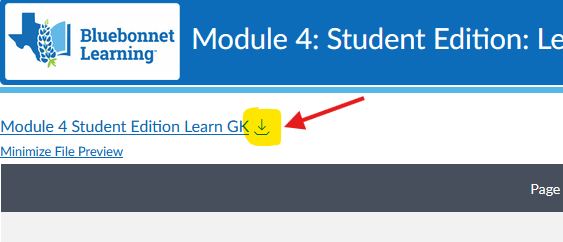 It is also easier to print workbooks or pages from workbooks if the PDF is first downloaded to a local device.
How a math unit works
The year is divided into modules (about 5 to 8 per grade), each module into topics, and each topic into daily lessons. The module and lesson number are printed at the top of each workbook page. That number is your key to finding the matching lesson, answers, and Zearn practice (more on Zearn below). Many teachers will post a calendar or Peek of the Week which outlines the modules and lessons being covered in class that week. In the workbooks, a symbol like this appears on each page:  In this case, it means that we are looking at Grade 5, Module 2.
The Math Instructional Period
Your elementary student has 90 minutes for math every day. The first 60 minutes are what is known as "Tier 1 Instructional Time." This is where the majority of the learning happens.
The additional 30 minutes are known as "Tier 2 and Tier 3" Instructional Time. It is during this period that teachers can spend additional time supporting students who might not have understood that day's lesson as well. For other learners, they may be offered "extension" activities that challenge them to think beyond the lesson. Our kids know what Tier 2 means, and you can ask them about how they spent their "Tier 2" time in class that day.
Math Catalyst is an add-on component to Bluebonnet offered by Great Minds. Our schools utilize resources in Math Catalyst during the Tier 2 time, to either provide additional support or enhanced learning beyond the lesson. You might see some Math Catalyst worksheets come home with your child (already completed in school), or your child's teacher might be using in-class activities created through Math Catalyst to complement the daily instructional lesson.
| Parts of the Math Class | What it is | What you can see |
|---|---|---|
| Daily lesson | A quick fluency warm-up (sometimes a sprint), a new idea taught with pictures and models, then practice. | The lesson in the Teacher Edition; the pages in the Learn book |
| Exit ticket | A few problems at the end of a lesson that show the teacher what stuck. | Ask the teacher; This should not be graded for reporting purposes, but to instead identify students who might need additional teaching of the lesson. |
| TEKS Progress Check (topic check) | A short, online scored check after a topic. How often it's used varies by class. | Student ClassLink Login-->Great Minds → My Scores. These scores are often also reported through Skyward. |
| Module assessment | A test partway through and/or at the end of the module, often taken online. | ClassLink → Student Testing Access → My Test Scores. These scores are often also reported through Skyward. |
| Homework | Practice from the Succeed book, including a Homework Helper, showing a worked example of the homework problems. | Answers in the Teacher Edition |
Sprints and exit tickets
Sprints are one-minute pages of quick math facts and are utilized at the beginning of the Tier 1 Instructional period. They are located in the Practice Workbook. Not every lesson will include a sprint. Students try side A, check answers, talk about patterns, then try side B. The goal is to beat their own side A score, not to finish the page or compete with classmates. Sprints are not assigned a grade and are not reflected in your child's formal grading. If your child is stressed about sprints, it might help to reinforce the intention behind the sprints, or to practice math facts at home. Your student has access to Amplify through Classlink. They can utilize the login at home to practice Fact Fluency, although you may have to ask your child's teacher to "unlock" the flash card decks. 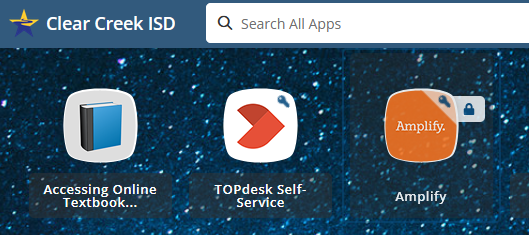
Exit tickets are short checks at the end of a lesson that help guide the teacher in what to reteach or work on with specific subsets of students. Ask your child's teacher how exit tickets are used in their class. Earlier in the year, some teachers were grading these in a similar way to a quiz and handing them back to your child. As these exit tickets might be only one or two questions based on material taught in the same class period, grades were often well below 70. This could be discouraging to many students who do not understand the intention behind the Exit Ticket. These grades are most helpful when teachers are using them to guide the Tier 2 instructional time, but not to assess a student's knowledge and should not be utilized as formally-recorded graded assignments. Teachers (mostly limited to Grade 2) have the flexibility to use them as recorded grades when repeating Exit Tickets from earlier lessons, after a child has had a chance to review, learn, and deepen the understanding of a specific topic. Check with your teacher if there is confusion on how Exit Tickets are being used in your child's classroom.
Homework
In CCISD, the policy is that K-5 Math homework is optional and not assigned a formal grade (although it may be checked for completeness). Students bring home a Succeed book for each module. Some teachers send a homework calendar with it. Some students do best when completing a lesson's homework on the same day that lesson is taught in school. For others, it works best a few days after a lesson is taught in class, not the same night. If your student is only bringing pages from the Succeed workbook instead of the entire workbook, please reach out to your teacher to request the entire book. Here are some best practices:
- Ask your child what lesson was covered in class that day. Utilize the PDF copies of the Learn and Practice books to jog the memories of your students - ask which pages were covered in class that day.
- Start with the Homework Helper. Find the matching homework for that Module and Lesson. Each lesson's homework begins with a worked example. Read it together first.
- Check answers in that module's Teacher Edition (see the grade links above).
- Keep the book somewhere safe. Schools may not have replacements, but you can print missing pages from the TEA site.
- If it isn't working (causing anxiety/stress, or much longer than 15 to 20 minutes), stop and tell the teacher.
- Remember that Bluebonnet Math emphasizes a different approach to learning and solving problems than most parents and older siblings were taught (including number bonds, tape diagrams, and number lines). Therefore, it will be helpful to review the teacher guide and Homework Helper to make sure that your child is utilizing the methods taught in the classroom to complete the assignments, rather than a parent-taught method that differs from the classroom approach.
A quick routine that helps: the night before school, look at the following day's lesson together. Seeing the model or picture once at home means class becomes your child's second look, not their first. This might be particularly helpful in the sprints, especially if your child gets nervous or anxious during timed assignments.
Topic Progress Checks and Module Assessments
Topic Progress Checks (Great Minds): Some teachers assign short scored checks after each topic. This is more likely in grades 3-5. From your child's ClassLink:
- Open Great Minds (Bluebonnet Learning Math K–5).
- Choose My Scores at the top. My Work shows what's been assigned.
- Each check is listed by module and topic, with its date. Open one marked "Scored" to review it.
How often these are used varies by class. If you see only one or two so far this year, ask the teacher how else your child's practice is being checked between module tests.
Module assessments: From your child's ClassLink:
-
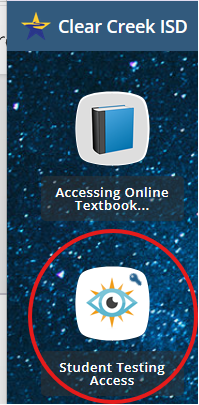
Open Student Testing Access.
-
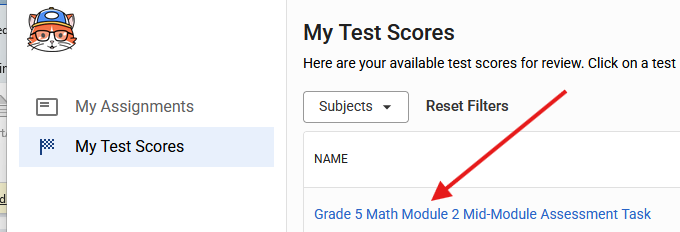
Click through the District SSO sign-in and choose My Test Scores.
-
Click a test name to see each question, your child's answer, and the score. Students use physical paper and pencil alongside the test, so there might be questions where you do not see any work (if the question required a drawing or model), or where it might be more difficult to see how or why your child came up with a particular answer.
 |
 |
 |
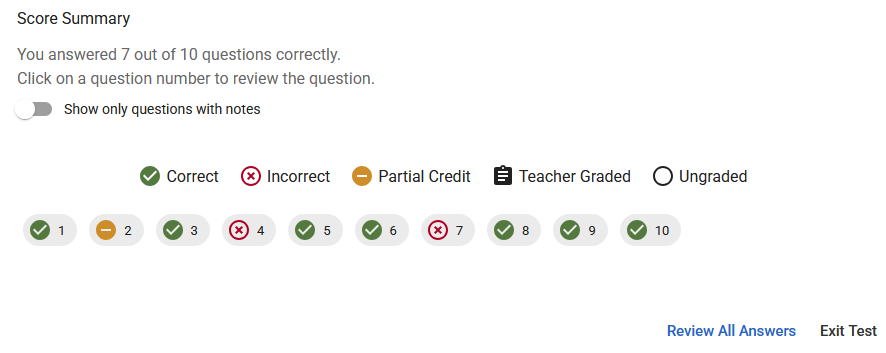 |
What to look for: on a short test, one question can be worth several points. If your child understood most of it but lost points on one item, especially a drag-and-drop question, the problem may be the format, not the math. Ask the teacher whether your child can show that skill another way. Review some missed questions with your child. Ask, do you think that you got this question right or wrong? Why do you think that? For the most part, the only access online for math is during testing, so especially for younger or less active computer-using children, the testing format might be confusing. For other children, it could be an issue with reading the question.
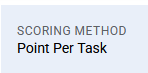
Great Minds designed these assessments to be scored with a rubric that can give partial credit, not just a count of right answers. Each scored assessment shows its scoring method (for example, "Point Per Task"), so it's worth opening each one to understand your student's progress, and asking your teacher how assessments are being scored.
Helpful Hint on Audio: For Module Assessments, your student might have access to a read-aloud button.  Your child should have access to headphones for these assessments and should be encouraged, if appropriate, to use the read-aloud feature so that the question can be heard in addition to being read by your student.
One Note on Problem-Solving Methodology: Although Bluebonnet Math emphasizes very particular models and problem-solving strategies, District guidance to teachers is that when completing Exit Tickets, Topic Checks, and Assessments, students may use any valid solving method unless otherwise specifically stated. As well, there should be a limited use of questions that require a specific solving strategy. If you are not seeing that in your child's classroom, please reach out to your teacher to understand how and when rigid problem solving strategies are required.
If your child gets a low score
According to District guidance, if your child scores a 70 or lower on an assessment or topic check, they are supposed to be given the opportunity for additional learning and retesting to achieve a grade up to a 70. If your child scores above a 70 but lower than expected, additional learning and retests will be averaged according to district policy. How this works may still vary by campus and classroom. Please reach out to your teacher to see how they are offering reteaching and retesting opportunities for lower grades. This is especially important if test question ambiguity or novel computer-based testing techniques like drag and drop are the source of your child's errors. This is why it is especially helpful to review the topic checks and assessments with your child after they have been completed and scored.
Progress Report Grades
Progress Reports are used in grades 2-5. For Progress Reports, you will see numeric 0-100 grades given for certain selected assignments inside of each module. The Bluebonnet Modules are grouped into Skill Hierarchies. For example, in Grade 5, the listed skill "Whole Number and Decimal Place Value and Operations" is equivalent to Modules 1 and 2. In Grade 2, the first listed skill is "Sums and Differences to 100, Addition and Subtraction of Length Units." This is equivalent to Modules 1 and 2 in Grade 2. Please check with your teacher if you have questions about which Modules apply under which Skill Headings.
A variety of assignments will be utilized for the Progress Reports. These might include TEKS Topic Checks, mid-module assessment, and end-of-module assessments. See above for descriptions of each and how to find your child's graded work. Scores may not appear in Skyward until some time after your child takes an assessment. Therefore, a best practice is to consult the links through Classlink on a more frequent basis (or when you know that your child has a scheduled Topic Check or assessment) to see the results in real-time.
K-1 will not receive Progress Reports.
Report Card Guidance
Grades K-5 will utilize the 1-4 grading system for Skills that are completed (or partially completed) during that quarter.
| Level | Grades K-1 Previous | K-1 Current |
|---|---|---|
| 4 | Exceeds Grade Level Standard | Masters grade-level standards |
| 3 | Meets grade-level standards | Meets grade-level standards |
| 2 | Approaching grade-level standards | Developing understanding |
| 1 | Developing Proficiency | Early learning stages |
| Level | Grades 2–5 Previous | Grades 2–5 Current | Assessed Work Reflects |
|---|---|---|---|
| 4 | Exceeds Grade Level Standard | Masters grade-level standards | Strong and Sustained Success (85-100%) |
| 3 | Meets grade-level standards | Meets grade-level standards | Mostly Successful (70-84%) |
| 2 | Approaching grade-level standards | Approaches grade-level standards | Partial Success (55-69%) |
| 1 | Developing Proficiency | Did not meet grade-level standards | Limited Success (Less than 55%) |
Unlike progress reports, the report cards will not show the individual assessment grades that form the basis for the 1-4 grade for each Skill. You can use the Gradebook link on Skyward or the Student Testing Link through Classlink to see your student’s individual scored assessments and grades.
Teachers assign a level for a student’s proficiency on each Module based on classwork, assessments, and observation. Unlike prior years where most teachers used a progressive grading system throughout the academic year (i.e., 1st Quarter target = 1, 2nd Quarter target = 2, etc.), each Skill’s grade is standalone for math. There is an expectation that your child's grades might fluctuate more during the year than in prior years.
According to District policy, a minimum of six graded assignments should be used when determining progress measures per nine-week quarter in grades 2-5. Because this system is new, the number may vary by classroom this year, so ask your teacher which assignments will count this quarter. Grading criteria should become more standardized across same-grade classrooms and campuses as the year progresses. Since Report Cards do not report graded assignments, it is a good idea to consult the Skyward Gradebook at the end of the quarter.
Progression Levels are not determined simply by averaging a student's graded assignments, although the graded assignments are a key consideration in the evaluation process. In addition, the teachers are encouraged to give more weight to end-of-module and end-of-quarter assignments than to the work done in the earlier parts of the quarter and modules. This is to reflect when continued learning has led to improved results. See the charts above for what Levels 1-4 mean on report cards. Due to a printing error, First Quarter report cards did not have the updated descriptions. The district has advised that they hope to have the correct language on future Progress Reports and Report Cards.
Free practice at home: Zearn
Zearn Math for Texas is a state-approved digital learning platform that is fully aligned with Bluebonnet curriculum. It offers independent digital lessons, fluency activities, as well as printable problem sets, mid-module, and end-of-module assessments, along with the answer keys. Some districts have adopted it as part of the overall Bluebonnet Math roll-out. CCISD recommends Zearn to families as a free at-home resource (see the district's Bluebonnet Math family resources at ccisd.net/elementary: scroll to Elementary Curriculum and open Elementary Mathematics), but accounts are not set up through the district. However, it is free to create a parent account and "enroll" your child in the appropriate grade so that your child can follow alongside the in-class curriculum with a partner learning tool. If you have children in more than one grade, you must utilize additional parent emails to get access to different grade levels.
Here is how to get started.
- Go to zearn.org and sign up for a free parent account.
- Choose your child's school, then create a class for your child's grade. This ensures that you will receive the Texas-based version of Zearn that aligns with our state's TEKS and Bluebonnet modules.
- Add your child. They will receive a printable card with their Class Code, User Name, and Password.
- From the Parent login, find the Mission (module) that matches your child's current module. Compare the topic names with the workbook to be sure.
- Under Instructional Materials, find practice problems, module assessments, and answer keys, in lesson order.
- Your child will log on using their credentials to complete assigned activities. Aim for about three short sessions a week. Steady use matters more than long sessions.
A simple routine: rate it, then Zearn it. After each lesson's Succeed homework, have your child rate how it felt from 1 to 5 (1 = really hard, 5 = easy). If it's a 1 or 2, do the Zearn lesson with the same number that week. It takes the guesswork out of when to use extra practice, and kids like being asked.
- If your child is struggling: do the Zearn lesson after the class lesson, so it's a second explanation. Short, frequent sessions work best.
- If your child is ahead: preview the next lesson, or try the module's harder word problems and ask your child to explain their thinking out loud.
Before a mid-module or end-of-module assessment: checklist
- Pull up the full Module (available on the TEA website) and skim the lessons your child has covered.
- Have your child go over a few matching practice problems from Zearn or the Succeed book, including older topics. Tests often reach back weeks.
- Practice explaining: "How do you know?" Many questions ask students to show or explain.
- Zearn offers practice printable mid-module assessments and end-of-module assessments. They are longer than what your child will see in class, and they are written in a similar fashion to the questions on the actual Bluebonnet assessments.
- Ask your child to read a few sample questions out loud. Bluebonnet uses specific vocabulary and often uses words at or slightly above grade level. Help your child become familiar with these commonly-used words.
- If your child's in-class tests are online, try a drag-and-drop or typed-answer question together in Zearn so the format isn't as unfamiliar.
- If your child uses the read-aloud function, ask the teacher whether headphones are provided or should be sent from home. Remind your child to use this resource.
- Remind your child that the district is still learning the best ways to use the test results to help future learning. A specific grade might reflect confusing questions, limited scoring opportunities, novel application of learned topics, or a genuine knowledge gap.
- If you still have concerns about your child’s understanding of a module after reviewing a particular assessment, reach out to the teacher. They might have advice about specific at-home activities or worksheets to reinforce understanding, or the teacher might be working during Tier 2 class time with your child on this subject.
If your child has an IEP, a 504, dyslexia support, or is learning English
Bluebonnet asks students to read a lot in math class, and a reading struggle can hide what a child knows in math. Questions to ask your child's teacher or case manager:
- Can word problems be read aloud or used with text-to-speech, on paper and online?
- Can my child do fewer problems on the same skill?
- Can my child have an untimed option for sprints?
- Can my child answer out loud instead of in writing when the goal is the math?
- How do my child's accommodations apply to daily work and online tests, not just paper tests?
Families of English learners: every grade's books are available in Spanish through the links above.
Campus Family Math Night
Watch for a family math night at your campus. Brookwood Elementary's Bluebonnet Night is Monday, October 26, 5:30–6:30 PM. These Math Nights should allow opportunities for parents to ask questions, either submitted ahead of time or at the meeting. There should be at least one district representative at a campus's Math Night.
About this guide
This guide was made by a CCISD parent to help other families. This is not an official Clear Creek ISD resource, and the district has not reviewed it. For questions about your child, contact your child's teacher or campus. Information was as accurate as could be discerned from publicly available material as of 10/23/2026 and is subject to change based on changes made by the district, campus, or your child’s teacher.
If you notice anything mentioned that is substantially different in your child's classroom, or if you have any questions, please email ccisdparents@gmail.com
The Spanish version of this guide was translated with the help of software and has not yet been reviewed by a native speaker. Corrections are welcome.
Bluebonnet Learning materials © Texas Education Agency, licensed CC BY-NC-SA 4.0, free at bluebonnet.tea.texas.gov. Zearn is an independent nonprofit.
Empiece aquí
Este es el primer año de un currículo de matemáticas completamente nuevo en las escuelas primarias de Clear Creek ISD (CCISD), llamado Bluebonnet Learning. Bluebonnet Learning es un currículo de la Agencia de Educación de Texas (TEA) y es la versión de Eureka Math (publicado por Great Minds) alineada con los estándares de Texas (TEKS). Eureka Math/Bluebonnet es un currículo que se enfoca en la comprensión conceptual (el porqué), en lugar de la memorización más tradicional (el cómo), para construir los conceptos matemáticos a lo largo de un año escolar y de muchos años escolares. Como es tan diferente de la forma en que casi todos los padres (y los hermanos mayores) aprendimos matemáticas, puede ser más difícil ayudar a los estudiantes en casa. Esta guía, creada por una madre de familia, se escribió para ayudar a padres y estudiantes a adaptarse a este cambio de currículo y para ofrecer algunos consejos y buenas prácticas que hagan más fácil la transición.
El cambio a Bluebonnet ha traído muchos cambios en la experiencia en el salón de clases, incluyendo las lecciones diarias, los exámenes y la tarea. En muchos casos, también ha cambiado las calificaciones que reciben sus hijos. Estos cambios reflejan métodos nuevos, preguntas con un formato nuevo y una nueva forma de calificar, no necesariamente una baja en la capacidad de su hijo.
Este cambio ocurre al mismo tiempo que CCISD implementa una nueva metodología de calificación por niveles de progreso (Grading/Progression Standards). Puede ser confuso o difícil entender cómo ciertos trabajos calificados llevan a un nivel específico en la boleta de calificaciones. Nuestros maestros todavía están aprendiendo a conectar estas dos partes.
Al revisar los trabajos calificados en línea o en los reportes de progreso y las boletas de calificaciones, hable con su hijo o hija. Pregúntele qué le va bien en matemáticas y qué le confunde. Elogie su esfuerzo. Su hijo está aprendiendo una nueva forma de hacer matemáticas, y su maestro también. ¡Brindarle apoyo y ánimo es la mejor manera de ayudarle en esta transición difícil!
Empiece con estas cuatro cosas
- Consiga los libros y las respuestas. Son gratuitos en el sitio de TEA para cada grado, en inglés y en español (enlaces abajo). Las respuestas de la tarea están cerca del final de cada Versión del maestro.
- Vea los exámenes reales de su hijo. ClassLink → Student Testing Access → My Test Scores. Revise cada uno, porque una calificación baja puede deberse al formato o al método de calificación, y no a las matemáticas.
- Agregue Zearn. Es una plataforma digital gratuita para padres que funciona junto con el currículo Bluebonnet. Úsela para tener más preguntas, lecciones y evaluaciones de práctica.
- ¡Pregunte si tiene dudas! Estamos al principio del primer año de implementación. Es posible que el maestro de su hijo esté haciendo las cosas de forma un poco distinta. Si tiene dudas, ¡pregunte!
Los principales accesos en línea de CCISD
Puede usar varios recursos en línea de CCISD para dar seguimiento al progreso de su hijo. Cada escuela y cada salón pueden usar algunos de estos recursos de forma distinta, y otros se usan igual en todo el distrito.
| Recurso | Dónde | Acceso | Para qué se usa |
|---|---|---|---|
| Skyward | Acceso a Skyward | Cada padre o madre puede crear su propia cuenta de Skyward. | Skyward se usa para muchas funciones del distrito, como la inscripción. Aquí también puede ver el Gradebook del estudiante (con todos los trabajos calificados por clase y por trimestre), el reporte de progreso oficial de mitad de trimestre y la boleta de calificaciones oficial de fin de trimestre. |
| ClassLink | Acceso a ClassLink | Para entrar, debe usar la cuenta de su hijo. Puede entrar desde cualquier computadora. | ClassLink es el "punto de partida" para todos los programas que usa su hijo. Aquí están sus libros en línea. Varios accesos de matemáticas (vea abajo) empiezan aquí. |
| Canvas | Acceso a Canvas Guía de acceso para padres (PDF) |
Si tiene cuenta de Skyward, automáticamente tiene acceso a Canvas. Si no tiene cuenta de Skyward, puede crear una cuenta de Canvas para observar las clases de sus hijos. Use el segundo enlace de la casilla anterior. | Varía mucho entre maestros, grados y escuelas. Algunos maestros usan Canvas mucho para publicar contenido, recursos adicionales, información de tareas y otros datos útiles. Otros (sobre todo en los grados menores) lo usan muy poco. |
Libros y respuestas de su hijo
Bluebonnet Learning es un "Recurso Educativo Abierto", lo que significa que el público puede ver el currículo gratis. TEA publica el curso completo de cada grado, en inglés y en español. No se necesita contraseña.
| Grado | Español | English |
|---|---|---|
| Kínder | Curso 11109 | Course 9533 |
| 1.er grado | Curso 11110 | Course 9539 |
| 2.º grado | Curso 11111 | Course 9540 |
| 3.er grado | Curso 11112 | Course 9541 |
| 4.º grado | Curso 11113 | Course 9542 |
| 5.º grado | Curso 11114 | Course 9543 |
Todos los grados también están en bluebonnet.tea.texas.gov → K–5 Math. Cada grado se divide en módulos (de 5 a 8 por grado). Busque el módulo por el título en la portada del cuaderno de su hijo.
En cada módulo:
- Aprender, versión del estudiante (Learn): el libro que su hijo usa en clase. Incluye conjuntos de problemas, problemas de aplicación y boletos de salida. Encontrará más información sobre cada uno abajo.
- Practicar, versión del estudiante (Practice): otro libro que su hijo usa en clase. Contiene los sprints, plantillas de fluidez y guías de referencia. Estos libros son más cortos y no necesariamente tienen ejercicios para cada lección del módulo.
- Triunfar, versión del estudiante (Succeed): el libro de tarea. Si su hijo pierde su libro, puede volver a imprimir las páginas en línea. Algunos estudiantes también usan la versión electrónica en un iPad o tableta con lápiz, para completarla y borrar con más facilidad.
- Versión del maestro (Teacher Edition): todas las lecciones con respuestas. Las respuestas de todo el trabajo (excepto las evaluaciones de mitad y de final de módulo) están cerca del final, incluida la tarea de Triunfar.
También vale la pena abrir la Guía familiar de Matemáticas K–5 (en "Recursos por nivel del programa"), la explicación de TEA para las familias, y la Lista de manipulativos (en los documentos del curso), que muestra los materiales que se usan en las lecciones, como reglas, fichas y cubos.
A algunos padres les ha servido descargar los cuatro libros de cada módulo a una computadora, tableta o nube para tenerlos a mano durante el año escolar. Para hacerlo, haga clic en el ícono de descarga en la página de vista previa del módulo. También es más fácil imprimir los cuadernos o algunas páginas si primero descarga el PDF a su dispositivo.
Cómo funciona una unidad de matemáticas
El año se divide en módulos (de 5 a 8 por grado), cada módulo en temas y cada tema en lecciones diarias. El número de módulo y de lección aparece arriba de cada página del cuaderno. Con ese número puede encontrar la lección, las respuestas y la práctica en Zearn (más sobre Zearn abajo). Muchos maestros publican un calendario o un "Peek of the Week" con los módulos y lecciones que se verán esa semana. En los cuadernos, aparece un símbolo como este en cada página: En este caso, significa que estamos viendo 5.º grado, Módulo 2.
El periodo de matemáticas
Su hijo tiene 90 minutos de matemáticas todos los días. Los primeros 60 minutos se conocen como "tiempo de instrucción de Nivel 1" (Tier 1). Aquí ocurre la mayor parte del aprendizaje.
Los 30 minutos adicionales se conocen como tiempo de instrucción de "Nivel 2 y Nivel 3" (Tier 2 y Tier 3). Durante este periodo, los maestros pueden dedicar más tiempo a apoyar a los estudiantes que no entendieron tan bien la lección de ese día. A otros estudiantes se les pueden ofrecer actividades de "extensión" que los retan a pensar más allá de la lección. Nuestros hijos saben qué significa Tier 2, y puede preguntarles cómo usaron su tiempo de "Tier 2" ese día.
Math Catalyst es un componente adicional de Bluebonnet que ofrece Great Minds. Nuestras escuelas usan recursos de Math Catalyst durante el tiempo de Tier 2, ya sea para dar apoyo adicional o aprendizaje más allá de la lección. Puede que su hijo traiga a casa hojas de Math Catalyst (ya completadas en la escuela), o que el maestro use actividades de Math Catalyst en clase para complementar la lección diaria.
| Partes de la clase | Qué es | Qué puede ver usted |
|---|---|---|
| Lección diaria | Un calentamiento rápido (a veces un sprint), una idea nueva enseñada con dibujos y modelos, y práctica. | La lección en la Versión del maestro; las páginas del libro Aprender |
| Boleto de salida | Unos problemas al final de la lección que le muestran al maestro qué aprendió el estudiante. | Pregúntele al maestro. No debe calificarse para el reporte, sino servir para identificar a los estudiantes que necesitan que se les vuelva a enseñar la lección. |
| Revisión de tema (TEKS Progress Check) | Una revisión corta, en línea y calificada, después de un tema. Cada clase la usa con distinta frecuencia. | ClassLink del estudiante → Great Minds → My Scores. Estas calificaciones muchas veces también aparecen en Skyward. |
| Evaluación de módulo | Un examen a mitad y/o al final del módulo, muchas veces en línea. | ClassLink → Student Testing Access → My Test Scores. Estas calificaciones muchas veces también aparecen en Skyward. |
| Tarea | Práctica del libro Triunfar (Succeed), con un Homework Helper que muestra un ejemplo resuelto de los problemas de la tarea. | Respuestas en la Versión del maestro |
Sprints y boletos de salida
Los sprints son hojas de operaciones rápidas de un minuto que se usan al principio del tiempo de instrucción de Nivel 1. Están en el cuaderno Practicar. No todas las lecciones incluyen un sprint. Los estudiantes intentan el lado A, revisan las respuestas, comentan patrones y luego intentan el lado B. La meta es superar su propio resultado del lado A, no terminar la hoja ni competir con sus compañeros. Los sprints no se califican y no cuentan en las calificaciones formales de su hijo. Si su hijo se estresa con los sprints, puede ayudar recordarle para qué sirven, o practicar las operaciones básicas en casa. Su hijo tiene acceso a Amplify a través de ClassLink. Puede usar su cuenta en casa para practicar la fluidez con las operaciones (Fact Fluency), aunque quizá tenga que pedirle al maestro que "desbloquee" las tarjetas.
Los boletos de salida (exit tickets) son revisiones cortas al final de la lección que ayudan al maestro a decidir qué volver a enseñar o qué trabajar con ciertos grupos de estudiantes. Pregúntele al maestro cómo se usan en su clase. A principios del año, algunos maestros los calificaban como un examen corto y se los regresaban a los niños. Como estos boletos pueden tener solo una o dos preguntas sobre lo que se enseñó en esa misma clase, las calificaciones muchas veces quedaban muy por debajo de 70. Esto puede desanimar a muchos estudiantes que no entienden para qué sirve el boleto de salida. Estas calificaciones son más útiles cuando los maestros las usan para guiar el tiempo de Tier 2, no para evaluar lo que sabe el estudiante, y no deben registrarse como calificaciones formales. Los maestros (sobre todo de 2.º grado) pueden usarlos como calificaciones registradas cuando repiten boletos de salida de lecciones anteriores, después de que el niño haya tenido la oportunidad de repasar, aprender y entender mejor un tema. Si no está claro cómo se usan los boletos de salida en el salón de su hijo, consulte con el maestro.
Tarea
En CCISD, la política es que la tarea de matemáticas de K-5 es opcional y no recibe una calificación formal (aunque se puede revisar que esté completa). Los estudiantes llevan a casa un libro Triunfar (Succeed) para cada módulo. Algunos maestros envían también un calendario de tareas. A algunos estudiantes les va mejor hacer la tarea el mismo día en que se enseñó la lección en la escuela. Para otros, funciona mejor unos días después, no la misma noche. Si su hijo solo trae algunas páginas del cuaderno Triunfar en lugar del cuaderno completo, comuníquese con el maestro para pedir el libro completo. Estas son algunas buenas prácticas:
- Pregúntele a su hijo qué lección vieron en clase ese día. Use las copias en PDF de los libros Aprender y Practicar para ayudarle a recordar: pregúntele qué páginas vieron en clase ese día.
- Empiece con el Homework Helper. Busque la tarea que corresponde a ese módulo y lección. La tarea de cada lección empieza con un ejemplo resuelto. Léanlo juntos primero.
- Revise las respuestas en la Versión del maestro de ese módulo (vea los enlaces por grado arriba).
- Guarde el libro en un lugar seguro. Es posible que la escuela no tenga repuestos, pero puede imprimir las páginas que falten desde el sitio de TEA.
- Si no está funcionando (si causa ansiedad o estrés, o tarda mucho más de 15 a 20 minutos), pare y avísele al maestro.
- Recuerde que Bluebonnet enseña a aprender y resolver problemas de una forma distinta a como aprendieron la mayoría de los padres y hermanos mayores (por ejemplo, con vínculos numéricos, diagramas de cinta y rectas numéricas). Por eso, es útil revisar la Versión del maestro y el Homework Helper para asegurarse de que su hijo use los métodos que se enseñan en clase, y no un método que le enseñamos en casa y que es diferente.
Una rutina rápida que ayuda: la noche anterior, vean juntos la lección del día siguiente. Si su hijo ve el modelo o el dibujo una vez en casa, la clase será su segunda vez, no la primera. Esto puede ayudar sobre todo con los sprints, en especial si su hijo se pone nervioso con las actividades cronometradas.
Revisiones de tema y evaluaciones de módulo
Revisiones de tema (Great Minds): Algunos maestros asignan revisiones cortas y calificadas después de cada tema. Es más común de 3.º a 5.º grado. Desde el ClassLink de su hijo:
- Abra Great Minds (Bluebonnet Learning Math K–5).
- Elija My Scores arriba. My Work muestra lo que se ha asignado.
- Cada revisión aparece por módulo y tema, con su fecha. Abra una marcada "Scored" para revisarla.
Cada clase las usa con distinta frecuencia. Si solo ve una o dos en lo que va del año, pregúntele al maestro de qué otra forma se revisa la práctica de su hijo entre los exámenes de módulo.
Evaluaciones de módulo: Desde el ClassLink de su hijo:
- Abra Student Testing Access.
- Pase por el inicio de sesión del distrito (District SSO) y elija My Test Scores.
- Haga clic en el nombre del examen para ver cada pregunta, la respuesta de su hijo y la calificación. Los estudiantes usan papel y lápiz durante el examen, así que puede haber preguntas donde no se vea el trabajo (si la pregunta pedía un dibujo o un modelo), o donde sea más difícil ver cómo o por qué su hijo llegó a una respuesta.
|
|
|
|
Qué buscar: en un examen corto, una sola pregunta puede valer varios puntos. Si su hijo entendió casi todo pero perdió puntos en una pregunta, sobre todo una de "arrastrar y soltar", el problema puede ser el formato y no las matemáticas. Pregúntele al maestro si su hijo puede demostrar esa destreza de otra forma. Revise con su hijo algunas preguntas que falló. Pregúntele: ¿crees que esta te salió bien o mal? ¿Por qué? En general, el único uso de la computadora en matemáticas es durante los exámenes, así que para los niños más pequeños o que usan poco la computadora, el formato puede ser confuso. Para otros, puede ser un problema al leer la pregunta.
Great Minds diseñó estas evaluaciones para calificarse con una rúbrica que puede dar crédito parcial, no solo contando las respuestas correctas. Cada evaluación calificada muestra su método de calificación (por ejemplo, "Point Per Task"), así que vale la pena abrir cada una para entender el progreso de su hijo y preguntarle al maestro cómo se están calificando las evaluaciones.
Consejo sobre el audio: En las evaluaciones de módulo, su hijo puede tener un botón de lectura en voz alta. Su hijo debe tener audífonos para estas evaluaciones y, si es apropiado, se le debe animar a usar la lectura en voz alta para escuchar la pregunta además de leerla.
Una nota sobre los métodos para resolver problemas: Aunque Bluebonnet enfatiza modelos y estrategias muy específicos, la indicación del distrito a los maestros es que, en los boletos de salida, las revisiones de tema y las evaluaciones, los estudiantes pueden usar cualquier método válido, a menos que se indique otra cosa. Además, debe limitarse el uso de preguntas que exigen una estrategia específica. Si no ve esto en el salón de su hijo, comuníquese con el maestro para entender cómo y cuándo se exigen estrategias específicas.
Si su hijo saca una calificación baja
Según las indicaciones del distrito, si su hijo saca 70 o menos en una evaluación o revisión de tema, debe tener la oportunidad de recibir enseñanza adicional y volver a presentar el examen para obtener hasta un 70. Si saca más de 70 pero menos de lo esperado, la enseñanza adicional y los exámenes de recuperación se promedian según la política del distrito. Cómo funciona esto todavía puede variar según la escuela y el salón. Comuníquese con el maestro para saber cómo ofrece la enseñanza adicional y los exámenes de recuperación. Esto es especialmente importante si los errores de su hijo se deben a preguntas ambiguas o a formatos nuevos en la computadora, como arrastrar y soltar. Por eso es muy útil revisar con su hijo las revisiones de tema y las evaluaciones una vez que se hayan calificado.
Calificaciones del reporte de progreso
Los reportes de progreso se usan de 2.º a 5.º grado. En los reportes de progreso verá calificaciones numéricas de 0 a 100 para ciertos trabajos seleccionados dentro de cada módulo. Los módulos de Bluebonnet se agrupan en destrezas (Skills). Por ejemplo, en 5.º grado, la destreza "Whole Number and Decimal Place Value and Operations" corresponde a los Módulos 1 y 2. En 2.º grado, la primera destreza es "Sums and Differences to 100, Addition and Subtraction of Length Units", que corresponde a los Módulos 1 y 2 de 2.º grado. Si tiene preguntas sobre qué módulos corresponden a cada destreza, consulte con el maestro.
Se usarán distintos trabajos para los reportes de progreso. Pueden incluir las revisiones de tema (TEKS Topic Checks) y las evaluaciones de mitad y de final de módulo. Vea arriba una descripción de cada una y cómo encontrar los trabajos calificados de su hijo. Es posible que las calificaciones no aparezcan en Skyward hasta un tiempo después de que su hijo presente una evaluación. Por eso, se recomienda revisar los enlaces de ClassLink con más frecuencia (o cuando sepa que su hijo tiene programada una revisión de tema o una evaluación) para ver los resultados en tiempo real.
Kínder y 1.er grado no reciben reportes de progreso.
La boleta de calificaciones
De kínder a 5.º grado se usa el sistema de calificación del 1 al 4 para las destrezas que se completaron (o se completaron en parte) durante ese trimestre.
| Nivel | Kínder y 1.º, antes | Kínder y 1.º, ahora |
|---|---|---|
| 4 | Supera el estándar del grado | Domina el estándar del nivel del grado |
| 3 | Cumple con el estándar del grado | Cumple con el estándar del nivel del grado |
| 2 | Se acerca al estándar del grado | En desarrollo de la comprensión |
| 1 | Desarrollando competencia | Etapas iniciales de aprendizaje |
| Nivel | 2.º a 5.º, antes | 2.º a 5.º, ahora | El trabajo evaluado refleja |
|---|---|---|---|
| 4 | Supera el estándar del grado | Domina el estándar del nivel del grado | Éxito sólido y constante (85-100 %) |
| 3 | Cumple con el estándar del grado | Cumple con el estándar del nivel del grado | Mayormente exitoso (70-84 %) |
| 2 | Se acerca al estándar del grado | Se acerca al estándar del nivel del grado | Éxito parcial (55-69 %) |
| 1 | Desarrollando competencia | No cumple con el estándar del nivel del grado | Éxito limitado (menos de 55 %) |
A diferencia de los reportes de progreso, las boletas no muestran las calificaciones de cada evaluación que sirven de base para el nivel del 1 al 4 de cada destreza. Puede usar el Gradebook en Skyward o Student Testing Access en ClassLink para ver las evaluaciones y calificaciones individuales de su hijo.
Los maestros asignan un nivel de dominio para cada módulo según el trabajo en clase, las evaluaciones y la observación. A diferencia de años anteriores, cuando la mayoría de los maestros usaba un sistema progresivo durante el año escolar (por ejemplo, meta del 1.er trimestre = 1, meta del 2.º trimestre = 2, etc.), en matemáticas la calificación de cada destreza es independiente. Es de esperar que las calificaciones de su hijo varíen más durante el año que en años anteriores.
Según la política del distrito, en 2.º a 5.º grado se deben usar al menos seis trabajos calificados para determinar el nivel de progreso en cada trimestre de nueve semanas. Como este sistema es nuevo, el número puede variar según el salón este año, así que pregúntele al maestro qué trabajos contarán este trimestre. Los criterios de calificación deberían ser más uniformes entre salones del mismo grado y entre escuelas a medida que avance el año. Como las boletas no muestran los trabajos calificados, es buena idea revisar el Gradebook de Skyward al final del trimestre.
Los niveles de progreso no se determinan simplemente promediando los trabajos calificados del estudiante, aunque estos son una parte clave de la evaluación. Además, se anima a los maestros a dar más peso a los trabajos de final de módulo y de final de trimestre que al trabajo de la primera parte del trimestre y de los módulos. Así se refleja cuando el aprendizaje continuo ha llevado a mejores resultados. Vea las tablas de arriba para saber qué significan los niveles del 1 al 4 en la boleta. Por un error de impresión, las boletas del primer trimestre no tenían las descripciones actualizadas. El distrito ha dicho que espera tener la redacción correcta en los próximos reportes de progreso y boletas.
Práctica gratuita en casa: Zearn
Zearn Math for Texas es una plataforma digital aprobada por el estado y completamente alineada con el currículo Bluebonnet. Ofrece lecciones digitales independientes, actividades de fluidez, y conjuntos de problemas y evaluaciones de mitad y final de módulo para imprimir, con sus respuestas. Algunos distritos la han adoptado como parte de la implementación de Bluebonnet. CCISD recomienda Zearn a las familias como recurso gratuito para usar en casa (vea los recursos del distrito sobre Bluebonnet Math en ccisd.net/elementary: baje hasta Elementary Curriculum y abra Elementary Mathematics), pero las cuentas no se configuran a través del distrito. Sin embargo, es gratis crear una cuenta de padre o madre e "inscribir" a su hijo en el grado correspondiente, para que pueda seguir el currículo de la clase con una herramienta de apoyo. Si tiene hijos en más de un grado, debe usar otros correos electrónicos de padre para tener acceso a cada grado.
Así puede empezar:
- Vaya a zearn.org y cree una cuenta gratuita de padre o madre.
- Elija la escuela de su hijo y cree una clase para su grado. Así recibirá la versión de Zearn para Texas, alineada con los TEKS y los módulos de Bluebonnet.
- Agregue a su hijo. Recibirá una tarjeta para imprimir con su código de clase, nombre de usuario y contraseña.
- Desde la cuenta de padre, busque la "Mission" (módulo) que corresponde al módulo actual de su hijo. Compare los nombres de los temas con el cuaderno para estar seguro.
- En "Instructional Materials" encontrará problemas de práctica, evaluaciones de módulo y respuestas, en el orden de las lecciones.
- Su hijo entrará con sus propios datos para hacer las actividades asignadas. Procure unas tres sesiones cortas por semana. Es mejor la constancia que las sesiones largas.
Una rutina sencilla: califíquenla y luego Zearn. Después de la tarea de Triunfar de cada lección, pídale a su hijo que diga cómo le pareció, del 1 al 5 (1 = muy difícil, 5 = fácil). Si es un 1 o un 2, hagan la lección de Zearn con el mismo número esa semana. Así sabe cuándo hace falta práctica extra, y a los niños les gusta que les pregunten.
- Si a su hijo se le dificulta: haga la lección de Zearn después de la lección en clase, como una segunda explicación. Sesiones cortas y frecuentes funcionan mejor.
- Si su hijo va adelantado: vean la siguiente lección o intenten los problemas escritos más difíciles del módulo, y pídale que explique su razonamiento en voz alta.
Antes de una evaluación de mitad o final de módulo: lista
- Abra el módulo completo (en el sitio de TEA) y repase las lecciones que su hijo ya vio.
- Pídale a su hijo que resuelva algunos problemas de práctica de Zearn o del libro Triunfar, incluso de temas anteriores. Los exámenes muchas veces incluyen temas de semanas atrás.
- Practiquen explicar: "¿Cómo lo sabes?" Muchas preguntas piden mostrar o explicar.
- Zearn ofrece evaluaciones de práctica de mitad y final de módulo para imprimir. Son más largas que las que su hijo verá en clase y están escritas de forma parecida a las preguntas de las evaluaciones de Bluebonnet.
- Pídale a su hijo que lea en voz alta algunas preguntas de ejemplo. Bluebonnet usa vocabulario específico y muchas veces palabras de su grado o un poco más avanzadas. Ayude a su hijo a familiarizarse con estas palabras frecuentes.
- Si los exámenes en clase son en línea, prueben juntos en Zearn una pregunta de "arrastrar y soltar" o de escribir la respuesta, para que el formato no sea tan nuevo.
- Si su hijo usa la lectura en voz alta, pregúntele al maestro si la escuela da audífonos o si debe mandarlos de casa. Recuérdele a su hijo que use este recurso.
- Recuérdele a su hijo que el distrito todavía está aprendiendo la mejor forma de usar los resultados de los exámenes para ayudar al aprendizaje. Una calificación puede reflejar preguntas confusas, pocas oportunidades de crédito, una aplicación nueva de lo aprendido o una verdadera falta de conocimiento.
- Si después de revisar una evaluación todavía le preocupa lo que su hijo entiende de un módulo, comuníquese con el maestro. Puede recomendarle actividades u hojas de trabajo para reforzar en casa, o quizá ya esté trabajando ese tema con su hijo durante el tiempo de Nivel 2 (Tier 2).
Si su hijo tiene un IEP, un plan 504, apoyo para dislexia o está aprendiendo inglés
Bluebonnet requiere mucha lectura en la clase de matemáticas, y una dificultad con la lectura puede ocultar lo que un niño sabe de matemáticas. Preguntas para el maestro o el encargado del caso:
- ¿Se le pueden leer en voz alta los problemas escritos, o usar texto a voz, en papel y en línea?
- ¿Puede mi hijo hacer menos problemas sobre la misma destreza?
- ¿Puede tener una opción sin tiempo límite para los sprints?
- ¿Puede responder en voz alta en lugar de por escrito cuando lo que se evalúa son las matemáticas?
- ¿Cómo se aplican sus adaptaciones al trabajo diario y a los exámenes en línea, no solo a los de papel?
Para las familias de estudiantes que aprenden inglés: los libros de todos los grados están disponibles en español en los enlaces de arriba.
Noche de matemáticas para familias
Esté atento a la noche de matemáticas para familias en su escuela. La Noche Bluebonnet de Brookwood Elementary es el lunes 26 de octubre, de 5:30 a 6:30 p. m. Estas noches deben dar a los padres la oportunidad de hacer preguntas, ya sea por adelantado o durante la reunión. Debe haber al menos un representante del distrito en cada noche de matemáticas.
Sobre esta guía
Esta guía fue hecha por una madre de CCISD para ayudar a otras familias. No es un recurso oficial de Clear Creek ISD y el distrito no la ha revisado. Para preguntas sobre su hijo, comuníquese con su maestro o su escuela. La información es tan exacta como se pudo determinar a partir de materiales públicos al 23/10/2026 y puede cambiar según los cambios que hagan el distrito, la escuela o el maestro de su hijo.
Si nota algo que sea muy diferente en el salón de su hijo, o si tiene preguntas, escriba a ccisdparents@gmail.com
Esta versión en español se tradujo con ayuda de software y todavía no la ha revisado un hablante nativo. Agradecemos sus correcciones en ccisdparents@gmail.com.
Materiales de Bluebonnet Learning © Agencia de Educación de Texas, licencia CC BY-NC-SA 4.0, disponibles gratis en bluebonnet.tea.texas.gov. Zearn es una organización independiente sin fines de lucro.